Map Viewer Functionalities
Accessing the Map Viewer
You can access the MV through the redistribution2022.ca website. In the Commission tab, choose your province. The MV button is at the bottom right of the page.
Note: You will be limited to data on province boundaries for the province you selected on the Federal Electoral Districts Redistribution website: redistribution2022.ca.
ArcGIS Online supports the following browsers:
- Google Chrome version 96 and later
- Microsoft Edge version 96 and later
- Mozilla Firefox version 97 and later
- Mozilla Firefox version 91 (ESR)
- Safari version 14 and later
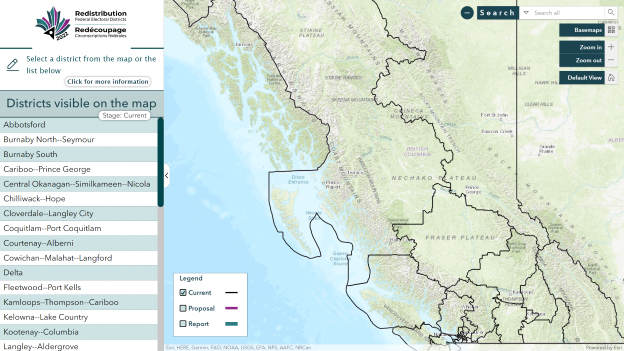
The MV application will load and look like this:
The Electoral District Panel
In the MV, there is a panel on the left with all the names of the electoral districts in a selected province for a selected stage of the redistribution process.
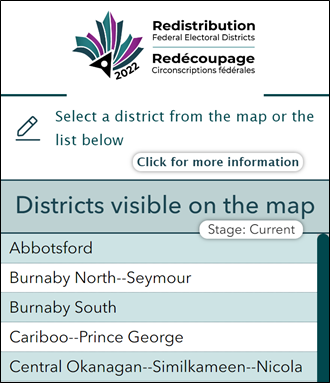
There are four (4) functions on the panel so you can:
- Access the user guide with this button.

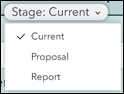
- Update the list of electoral districts by choosing the redistribution stage
- Select (double click) the name of an electoral district from the list to zoom in on it.
- Collapse and expand the wrapping panel by clicking on the arrow on the right edge.

Viewing the Limits of Redistribution Stages
You can view the electoral boundaries at each stage of the redistribution process using the visibility checkboxes of the legend.
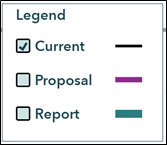
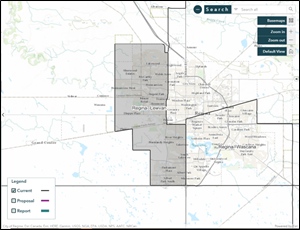
Current: By default, the Current stage is selected and displays the existing boundaries (2013 Representation Order) in black.
Proposal: By selecting this stage, you can display the boundaries proposed by a commission. The proposed boundaries are in magenta.
Report: This stage allows you to display in teal the new official boundaries in a commission's report.
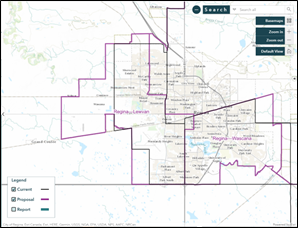
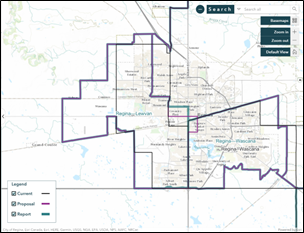
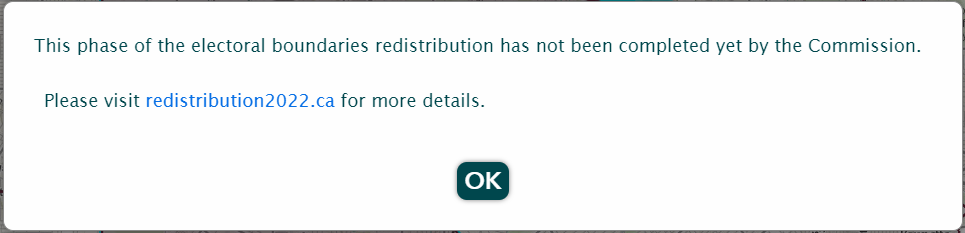
The limits of a stage will be displayed provided that it has already been completed by a commission. If you select a stage that has not yet been completed by a commission, the following message will appear.
Finding an Electoral District
You can search for an electoral district in five (5) ways:
First way
The first way is by using the search tool and selecting the “Electoral Districts” option.
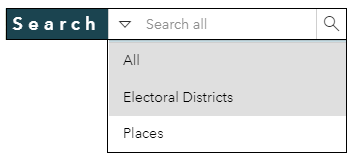
Once you enter the first few letters of the name of a city or an electoral district (see example on the right), the tool will suggest some names of electoral districts.
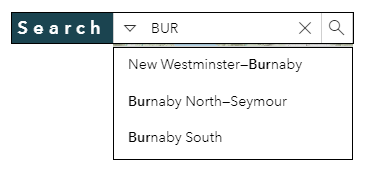
You then select the desired name and click on the magnifying glass. The tool then zooms in on the selected electoral district.

Second way
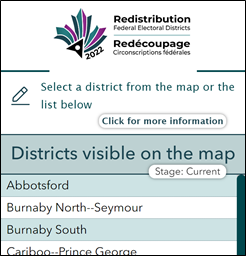
The second way is by using the list of electoral districts in the panel on the left of the screen.
Once you select the name of an electoral district from the list, the tool will zoom in and centre the map on the chosen electoral district.
Third way
The third way is by using the navigation functions such as Zoom in, Zoom out and Pan Zoom.
Fourth way
The fourth way is by scrolling and panning through the map: use the mouse spin button to zoom in and out and press and hold the left button of the mouse to pan.
Fifth way
Another way to find an electoral district is by using the Search Tool at the top right of the app and entering an address.
You will then see up to six (6) suggestions.
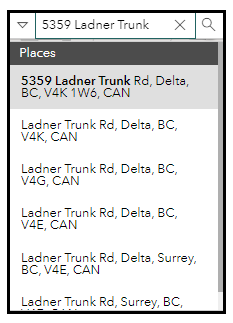
You then select the desired address.
The tool zooms in and places a dark gray circle at the address on the map (see red box).
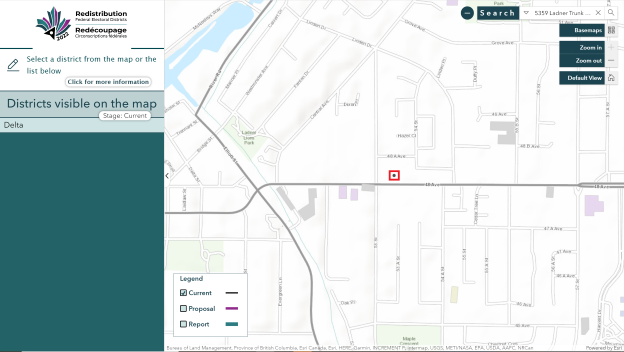
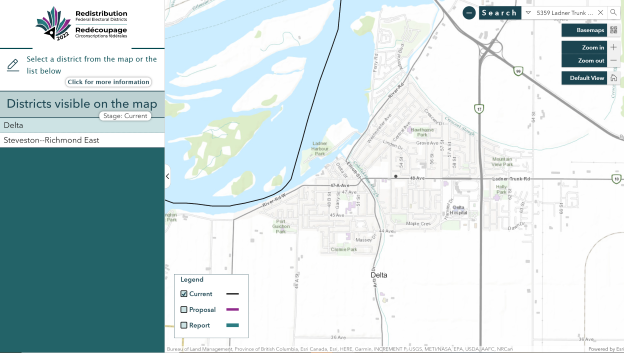
You can then use the various buttons (e.g. Zoom in and Zoom out) to navigate on the map and display the electoral district assigned to the address selected.
In this example, the address belongs to the electoral district of Delta in British Columbia.
Finding the Description of the Electoral District Boundaries
A description of the boundaries is available at all stages of electoral redistribution. You can view the description by:
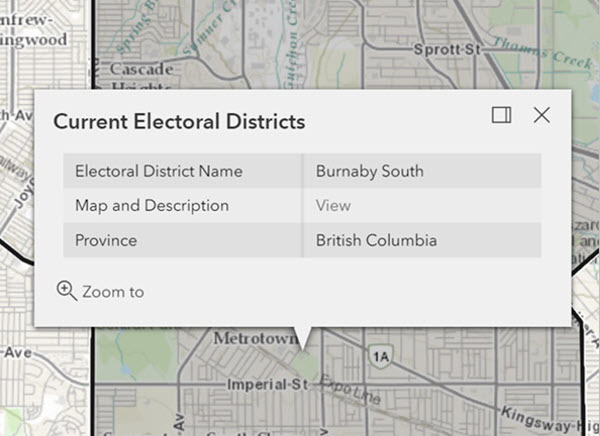
- Activating the pop-up window by clicking on the map within the electoral district.
- Clicking on “View” beside the “Map and Description” field in the pop-up window.
Map Navigation
You can navigate on the map by:
- Using the Zoom in, Zoom out or Default View functions. or
- Holding down the left mouse button to pan through the map.